
Connect MeowID to Zhongdamaopu
Connect approved campus-cat photos to MeowID so people can identify similar cats and open their existing profiles. Zhongdamaopu keeps the cat database; MeowID handles image registration and identity search.
- 01Create a project and key
- 02Configure the service
- 03Sync photos and verify recognition
01 · Before you start
This guide starts with a Zhongdamaopu campus-cat application that already has the recognition-service settings page. It covers MeowID setup and mini program operations.
Prepare:
- A MeowID console account with permission to create a project and API key.
- A Level-99 administrator account in the mini program, for service configuration and data sync.
- Existing cat profiles and approved photos to register and use for verification.
People will be able to search for similar cats and open existing profiles from the same mini program. Begin with a small set of cats and clear, single-cat photos before processing a larger photo library.
02 · Create a MeowID project
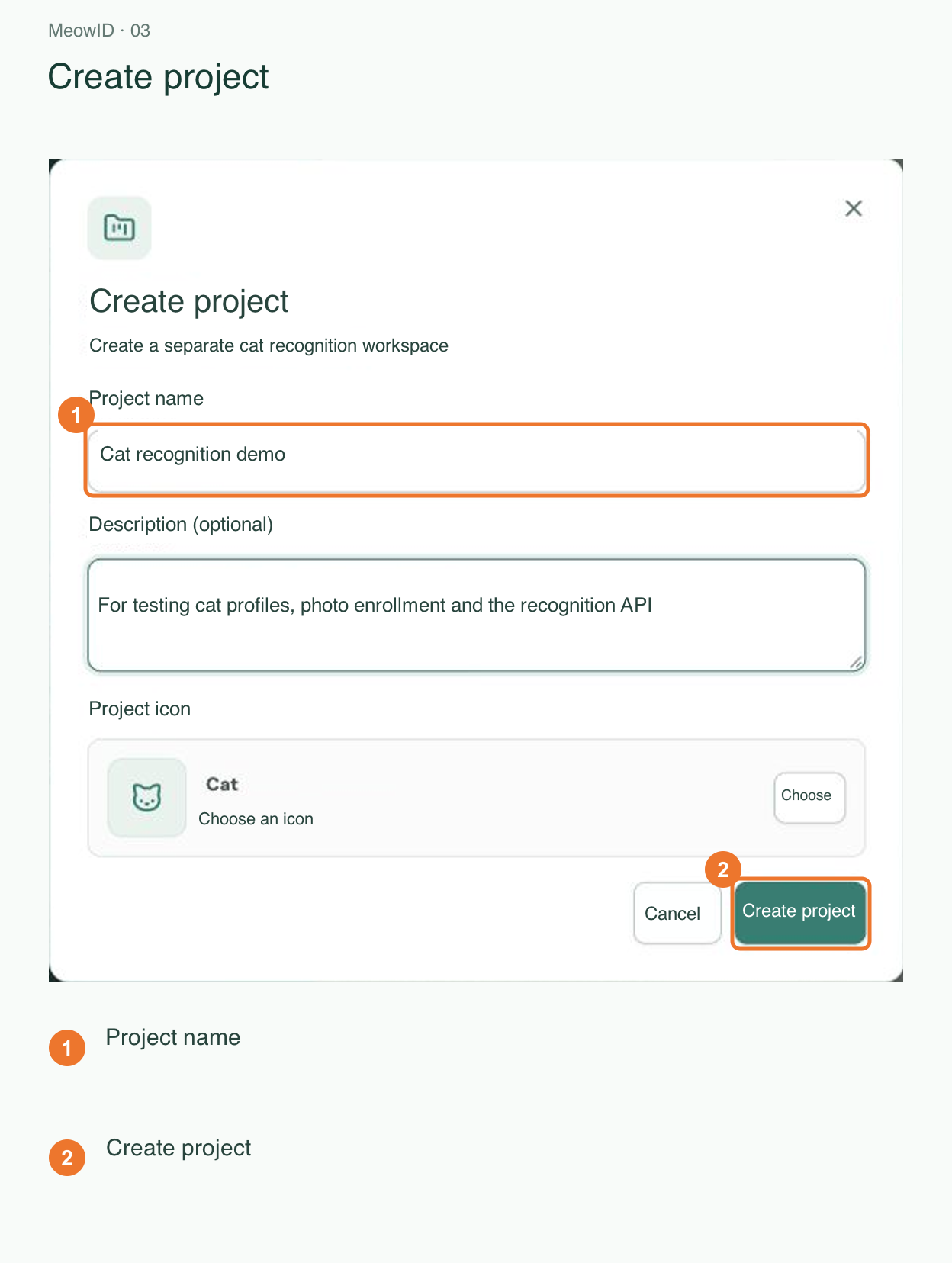
- Sign in to the MeowID console and create a project for your campus-cat application.
- Copy the project ID from its details. You will enter it in the mini program.
- Check the available balance and current billing rules; top up as needed. Image registration and recognition may consume paid usage.
Keep using the same project for this cat application. Sync creates a corresponding MeowID cat for each local profile; do not manually create every cat first.
03 · Create a key for sync and recognition
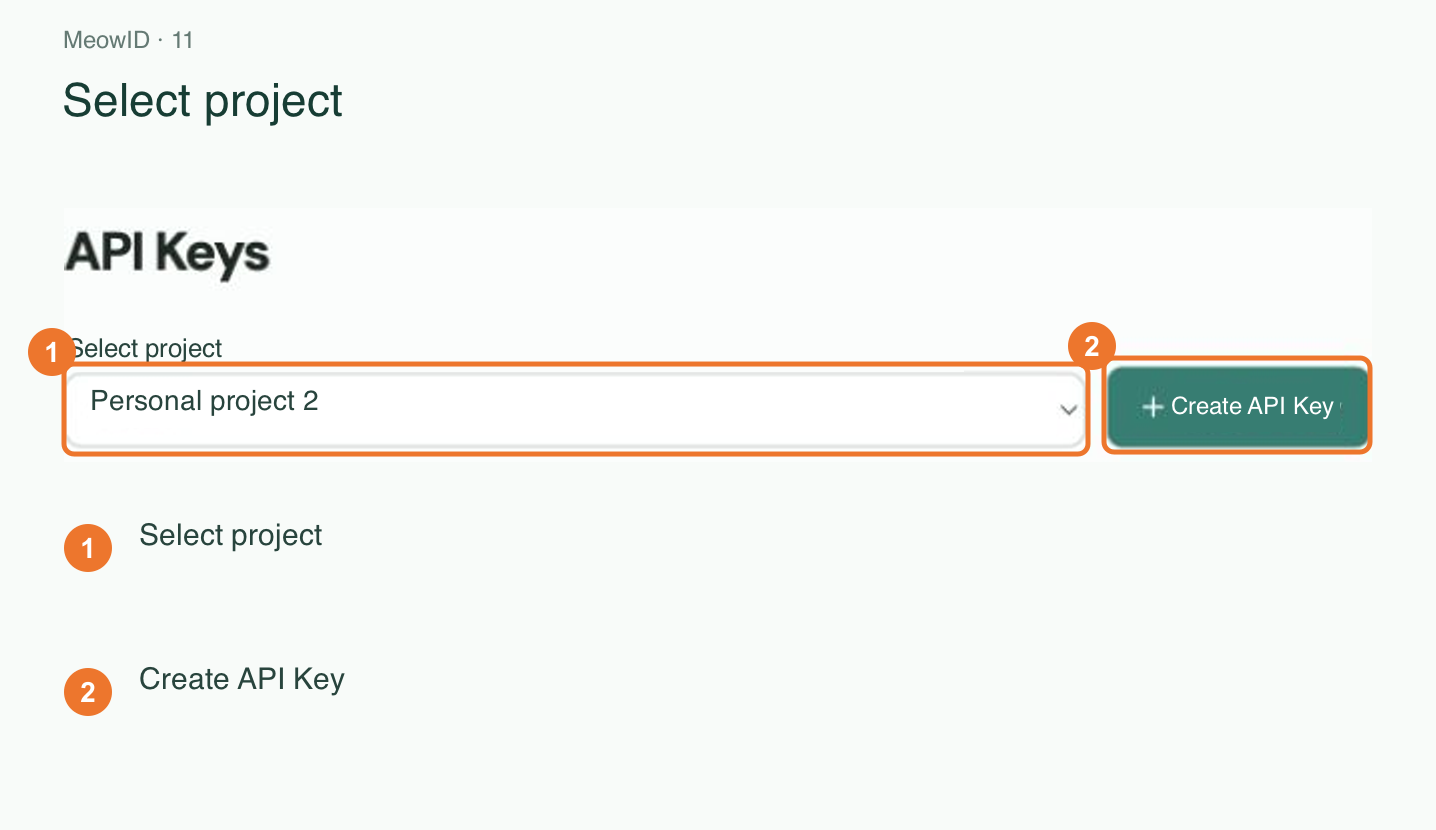
Open API Keys, select the same project, and create an integration key. Choose full access, or a custom key with all four scopes below.
| Scope | Purpose |
|---|---|
recognition:write | Run identity searches |
cats:read | Check connectivity and read cats and images |
cats:write | Create cat profiles and register approved images |
tasks:read | Refresh registration tasks and results |
A recognition-only key cannot run the complete sync workflow. Save the full key when it is displayed. Enter it in the mini program service configuration below. Never share it publicly or include it in screenshots.
04 · Enable and configure MeowID
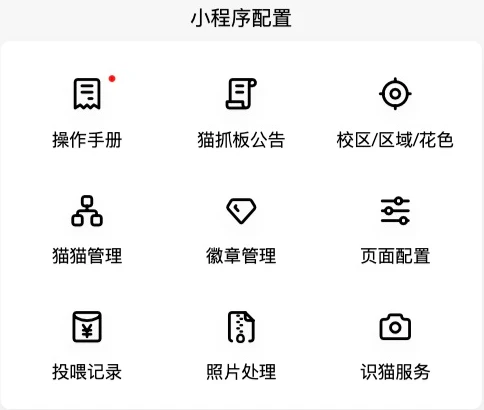
- Sign in as a Level-99 administrator. Open 关于 → 小程序配置 → 识猫服务 (About → Mini program settings → Recognition service). Lower-level administrators will not see this entry.
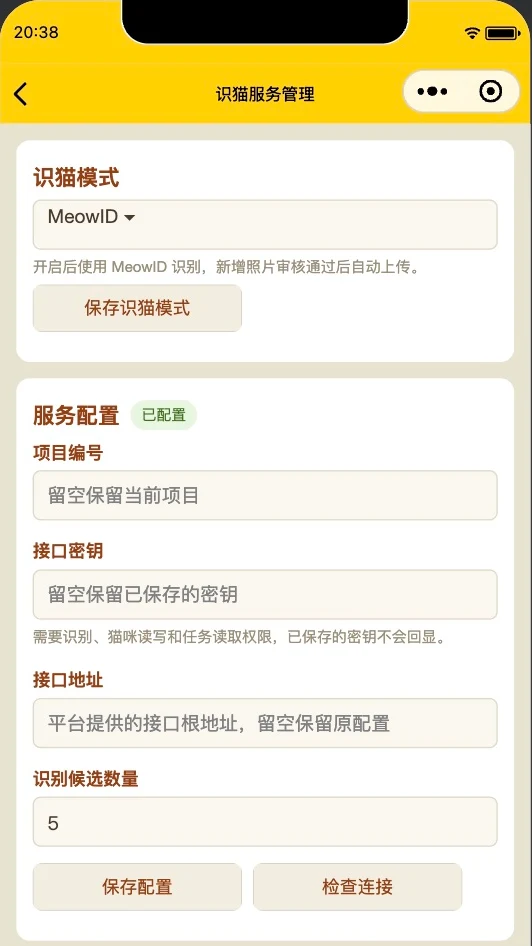
- Select MeowID as the recognition mode and save it.
- Enter the project ID, API key, and API base URL under service configuration. The default is
https://platform.meowid.net; the documentation URLhttps://meowid.net/developersis not an API endpoint. - Keep the candidate count at 5 initially. Save the configuration, then check the connection.
The project ID and API key must belong to the same MeowID project. Saved keys are not displayed again; leave a field blank to keep its current value. A blank key field does not mean the saved key is missing.
The screenshots show a real campus-cat application in Chinese; names and counts will differ in your project. Candidate count controls how many similar cats a search returns. It is separate from the per-cat photo cap in the next step.
05 · Sync existing profiles and approved photos
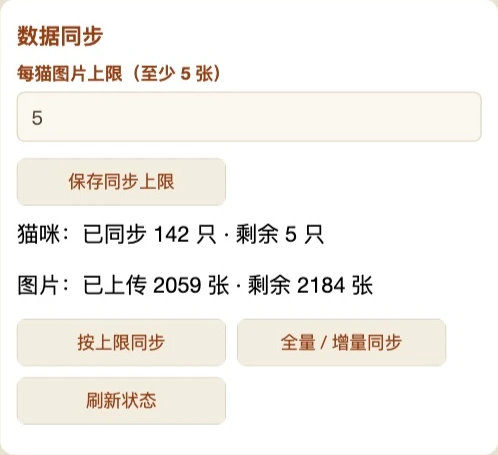
Choose a sync mode in the data-sync panel. Both modes sync cat profiles, skip existing submission receipts, and use approved photos without requiring a featured-photo flag.
| Button | Behavior |
|---|---|
| 按上限同步 · Sync to cap | Save the per-cat image cap first. The default and minimum are 5. A cat with three prior submissions receives only two more when its cap is five. |
| 全量 / 增量同步 · Full / incremental sync | Sync all approved data without a per-cat cap, including images previously deferred by the cap. Existing receipts are still skipped. |
| 刷新状态 · Refresh status | Retrieve the latest sync status and reconcile MeowID tasks. It does not start a new image-upload batch. |
Start with capped sync if you want to limit historical registration usage. A cat with only three approved photos uploads three; no image is repeated to reach five. A cat with no approved photos can still have its profile synced. Lowering the cap does not delete existing remote images.
Keep the page open while batches continue. Leaving stops new batch requests; an already submitted batch may still run. Click the same sync mode to resume. Keep prior sync records and never force reuploads based only on a difference between platform and local totals.
06 · Check counts and registration tasks
Synced and remaining cats count local profiles with a remote binding. Uploaded and remaining images count approved photos with platform acceptance records. Each accepted/synced count plus its remaining count equals its total.
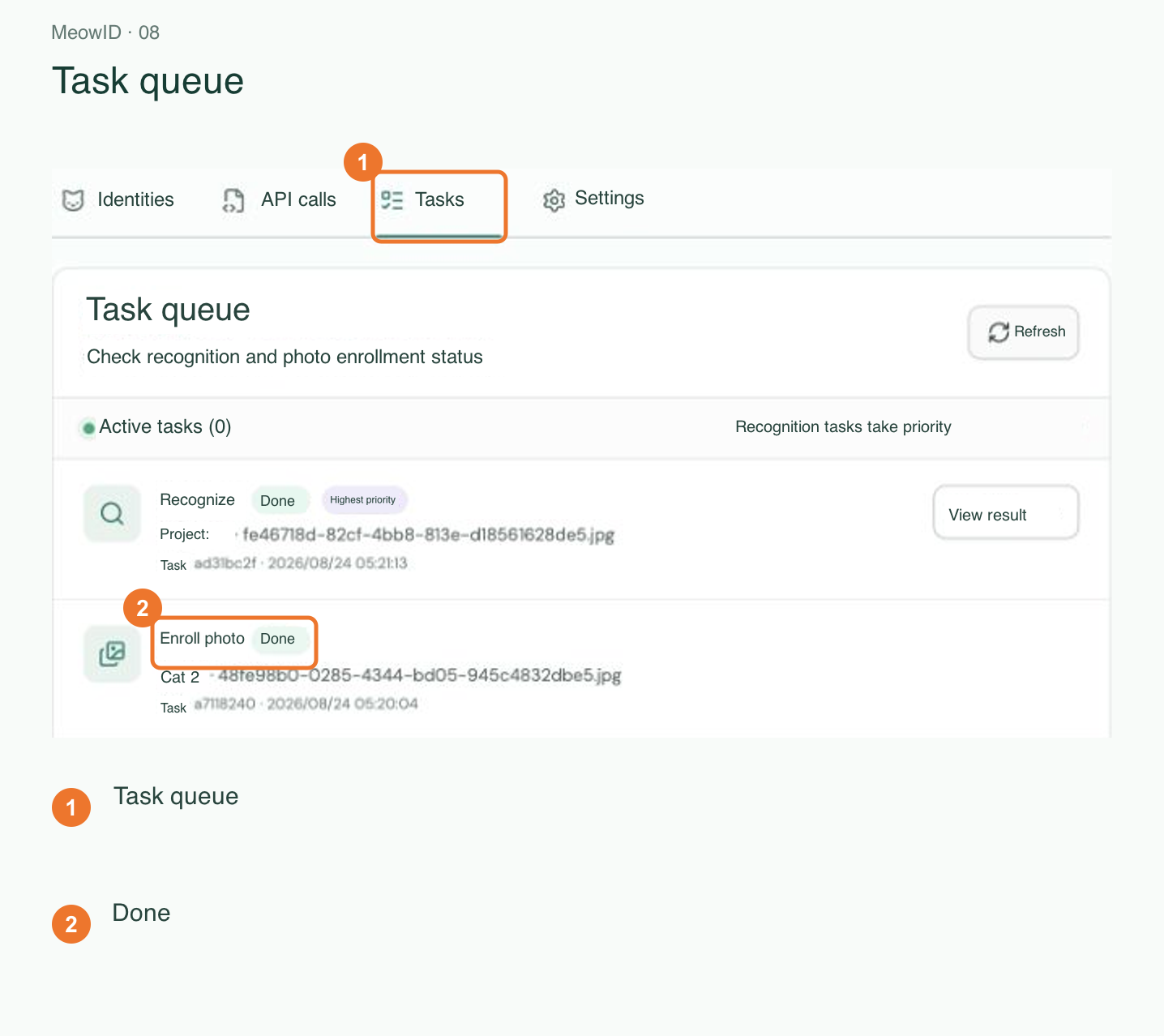
Uploaded does not mean registration has completed. The platform still needs to crop images and extract features. Open the project task queue to check:
queued / running: accepted and waiting or processing.completed: the registration task finished; use available registered images to verify recognition.waiting_user: confirm the target cat in the MeowID console.failed: inspect the error. A failed task with a receipt is not blindly uploaded again.
Remaining images can include capped, failed, and uncertain submissions; not all of them are safe to retry. Local cat bindings can also differ from platform totals that include manually created or older records.
07 · Verify recognition in the mini program
- Choose a locally linked cat with available registered images and prepare a clear, single-cat photo, ideally a different photo for verification.
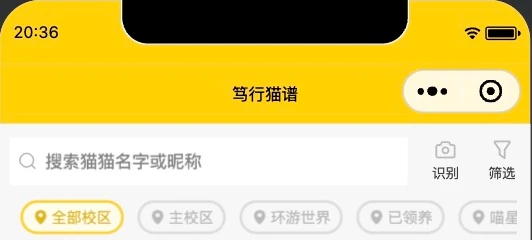
- On the mini program cat directory, tap 识别 (Recognize) next to the search field. Take a photo or choose one from the album.
- Inspect the similar-cat candidates and open a local profile. Confirm that the name, photos, and profile link are correct.
The mini program displays the local profiles linked to MeowID candidates. Compare names, photos, and distinctive features when reviewing a match.
Similarity ranks candidates; it is not an identity accuracy percentage. No cat detected, identity unknown, and a failed service request are different outcomes. Changing the selected cat in a multi-cat photo issues another recognition request and may incur usage. Begin with a single-cat photo.
08 · New approvals and ongoing maintenance
With MeowID enabled, approving a new photo directly attempts registration. The manual batch cap does not limit new approval uploads. Reviews can still be saved when another sync batch is active or an upload is incomplete; resume sync later for unsent photos.
- Keep existing sync records and use the appropriate sync button to continue. Do not recreate cat profiles to restart a sync.
- Check uncertain uploads in the MeowID task queue before taking action. Do not immediately submit the image again.
- Avoid adding the same photo as multiple separate records; separate records may still be submitted independently.
- Check project ownership before changing a project or key. Keep using the same MeowID project for the same cat application.
09 · Troubleshooting
| Symptom | What to check |
|---|---|
| Recognition service is missing | Use a Level-99 account and look under About → Mini program settings. |
| Capped sync will not start | Save an integer cap of at least five first. Retry failed status reads later and keep existing sync records. |
401 / 403 | Check key validity, matching project, all four scopes, and any IP allowlist settings. |
| Connection works but registration is incomplete | A successful connection is not completed registration. Check permissions, images, task errors, and processing progress in the console. |
| Cat counts differ | Local bindings and all platform cats have different counting rules. Counts alone cannot identify duplicate or missing records. |
| Images remain unsynced | Check caps, retry backoff, failed images, and tasks needing manual confirmation. Choose full / incremental sync to process all eligible approved photos. |
| Status refresh or recognition times out | Check connectivity and retry later, or inspect the platform task queue. Keep existing records and contact your maintainer if errors persist. |
| An upload is uncertain | Reconcile it with the MeowID task results first. Uncertain uploads are not automatically repeated. |
Continue with the API reference or MeowID console walkthrough. When reporting an issue, include the visible message, task ID, and time, but never publish API keys.